Piper’s camera is not a single lens on a longer or shorter stick. It is a small state system with three durable views, one temporary rear view, two body presentations, and explicit rules for movement, rotation, collision, and return.
This Adventure builds that system on top of the accepted character lab. Work in PiperCharacterLab, preserve the imported movement and animation graphs, and compile after every Forge. By the end, C, X, V, and the mouse wheel will each have one clear job.
Before you begin, complete Adventure 5 — Establish Piper’s Character Lab. It creates the reusable BP_PlayerCharacterBase, its BP_PiperCharacter child, BP_PlayerControllerBase, L_PlayerSystems, the camera enum and variables, the input assets, and both starting camera rigs used below.
Journey 1 — Give First Person a Body
Forge 1 — Add the separate arms mesh
Open BP_PlayerCharacterBase. In the Components panel, select the Capsule Component, add a Skeletal Mesh component, and name it:
FirstPersonArms
It must be a sibling of the main Mesh and CameraBoom, not a child of either:
Capsule Component
├── Mesh
├── CameraBoom
│   └── FollowCamera
├── RearViewBoom
│   └── RearViewCamera
└── FirstPersonArms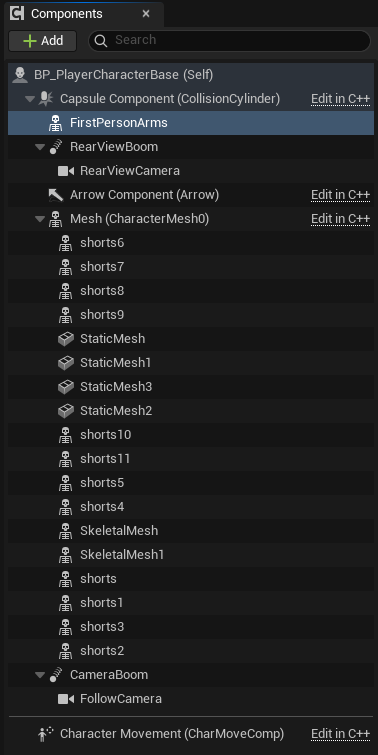
The reusable component is named for its role and remains a sibling of the character’s camera rigs and main Mesh.
Select the existing main Mesh and record its exact relative Location, Rotation, and Scale. Apply the same relative transform to FirstPersonArms, then assign the vendor SK_Arms from Content/Sample/Meshes.
Leave the arms visible just long enough to confirm that their shoulders and bones align with the full body. Then set:
| Setting | Value |
|---|---|
| Collision Presets | NoCollision |
| Only Owner See | Enabled |
| Cast Shadow | Disabled |
| First Person Primitive Type | First Person |
| Visible | Disabled |
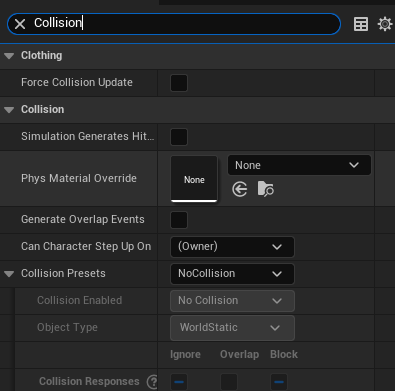
The separate arms do not participate in collision.
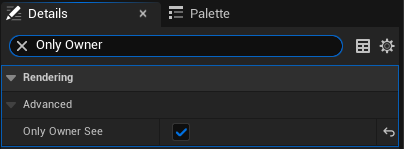
Only the owning player’s Camera can see the first-person arms.
Select FollowCamera and enable its first-person rendering settings:
| Setting | Value |
|---|---|
| Enable First Person Field Of View | Enabled |
| First Person Field Of View | 90 |
| Enable First Person Scale | Enabled |
| First Person Scale | 0.6 |
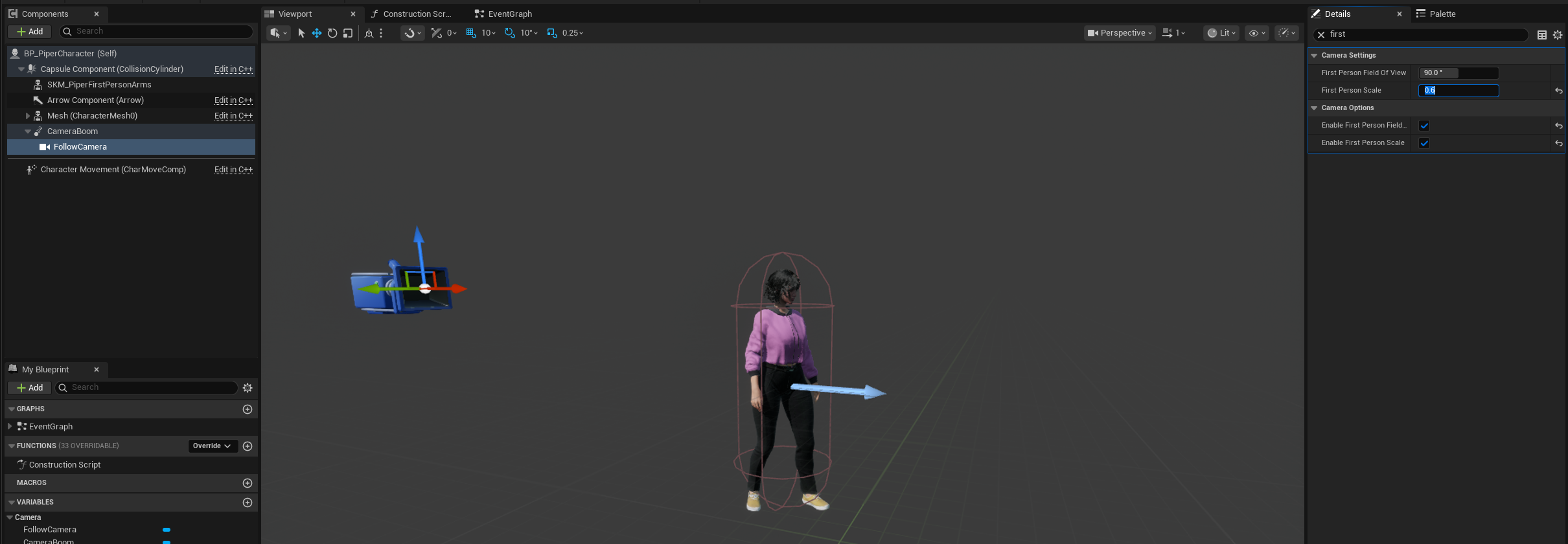
The shared Camera uses a dedicated first-person field of view and scale.
Compile and save.
The full body remains Piper’s world representation. The separate arms exist only for the owning player’s first-person presentation.
Forge 2 — Reuse the full-body animation
Open the Construction Script. Follow the vendor’s existing execution chain to its final executed node. Do not delete or reorganize the modular setup.
Append:
Vendor construction route
→ Set Leader Pose Component
    Target: FirstPersonArms
    New Leader Bone Component: Mesh
    Force Update: false
    In Follower Should Tick Pose: false
Leave the arms’ Animation Class set to None. They consume the main Mesh’s bone transforms instead of running a second Animation Blueprint.
Place only the appended nodes inside:
First-Person Arms Leader Pose
Compile and save.
Discovery — One animation, several modular pieces
Leader Pose lets a follower mesh reuse the leader’s evaluated bone transforms. That is lighter and safer here than duplicating locomotion logic for the arms. The skeletons must be compatible and their relative transforms must align.
Forge 3 — Create SetFirstPersonPresentation
Create a function in BP_PlayerCharacterBase:
SetFirstPersonPresentation
Add one Boolean input:
Enabled
Its contract is:
true: hide the full world body from the owning camera and show the separate arms.false: restore the world body and hide the separate arms.
Build the white execution route:
SetFirstPersonPresentation(Enabled)
→ Mesh: Set Owner No See
    New Owner No See: Enabled
→ For Each Loop
    Loop Body
    → Cast Array Element to Primitive Component
    → Set Owner No See
        New Owner No See: Enabled
→ Completed
→ FirstPersonArms: Set Visibility
    New Visibility: Enabled
    Propagate to Children: true
Add Get Children Components as a pure data node:
Get Children Components
    Target: Mesh
    Include All Descendants: true
└──→ For Each Loop.Array
Connect the loop’s Array Element to the Cast’s Object data pin. Enabled feeds both Owner No See values and the arms’ New Visibility.
The recursive child loop matters because hair, clothing, body sections, and accessories sit beneath the imported main Mesh. The arms are a sibling, so they remain outside that loop.
Compile and save. The function will not affect Play until a camera transition calls it.
Trial — Verify the presentation function
-
Enableddrives both Owner No See setters. - Get Children Components includes all descendants.
- Each child is cast to Primitive Component before Owner No See is called.
- Loop Completed controls the arms’ Set Visibility.
- Propagate to Children is enabled.
- The Blueprint compiles.
Journey 2 — Build the Shared First/Third-Person Camera
Forge 4 — Create the two durable shared-camera modes
Create EnterFirstPerson:
EnterFirstPerson
→ CameraMode = FirstPerson
→ DesiredArmLength = 0
Do not change body visibility here. The camera will move smoothly, and the Event Tick will change presentation only when it crosses the visual threshold.
Create EnterFreeThirdPerson:
EnterFreeThirdPerson
→ WasFirstPerson = (CameraMode == FirstPerson)
→ CameraMode = FreeThirdPerson
→ DesiredArmLength =
    Select(
        WasFirstPerson
        ? ThirdPersonEntryDistance
        : Clamp(DesiredArmLength,
                ThirdPersonMinimumDistance,
                ThirdPersonMaximumDistance)
    )
→ Use Controller Rotation Yaw = false
→ Character Movement: Orient Rotation to Movement = true
→ Character Movement: Rotation Rate = (Roll 0, Pitch 0, Yaw 500)
Capture WasFirstPerson before overwriting CameraMode. Leaving first person requests the noticeable 240-centimeter entry distance. Returning from another third-person state preserves the existing desired distance, clamped between 180 and 650.
Forge 5 — Align steering before special views
Create:
AlignControllerYawToActor
The function entry executes Set Control Rotation. Build its New Rotation data separately:
Get Actor Rotation
→ Break Rotator
→ Make Rotator
    Roll: 0
    Pitch: 0
    Yaw: Actor Yaw
└──→ Set Control Rotation.New Rotation

Get Controller.Return Value
└──→ Set Control Rotation.Target
The rotation, Break, Make, and Controller getter nodes are pure; only Set Control Rotation receives the function’s white execution wire.
Rear and locked views let mouse yaw steer Piper. Aligning the controller to the actor first prevents a stale controller heading from snapping her when that steering policy begins.
Forge 6 — Build the temporary rear view
Create EnterRearView:
EnterRearView
→ RearViewSourceMode = CameraMode
→ RearViewActive = true
→ SetFirstPersonPresentation(false)
→ FirstPersonVisualsActive = false
→ FollowCamera: Set Active(false)
→ RearViewCamera: Set Active(true)
→ AlignControllerYawToActor
→ Use Controller Rotation Yaw = true
→ Character Movement: Orient Rotation to Movement = false
Leave the Camera Component Reset inputs disabled.
Create ExitRearView:
ExitRearView
→ RearViewCamera: Set Active(false)
→ FollowCamera: Set Active(true)
→ RearViewActive = false
→ Switch on RearViewSourceMode
Complete the legal return paths:
FirstPerson
→ SetFirstPersonPresentation(true)
→ FirstPersonVisualsActive = true
→ Use Controller Rotation Yaw = true
→ Orient Rotation to Movement = false

FreeThirdPerson
→ SetFirstPersonPresentation(false)
→ FirstPersonVisualsActive = false
→ Use Controller Rotation Yaw = false
→ Orient Rotation to Movement = true
Leave LockedThirdPerson unconnected. Rear view cannot begin there.
Create ToggleRearView:
if RearViewActive:
    ExitRearView
else if CameraMode != LockedThirdPerson:
    EnterRearView
Create ExitRearViewIfActive:
if RearViewActive:
    ExitRearView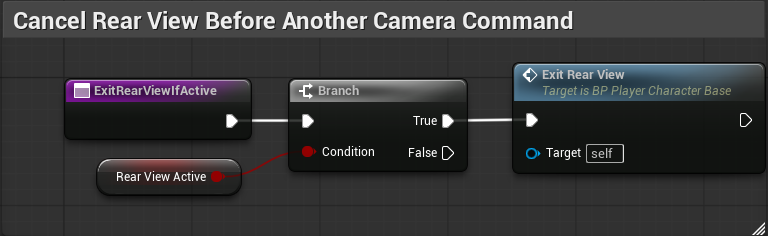
This helper leaves an inactive camera alone and exits rear view only when that overlay is actually active.
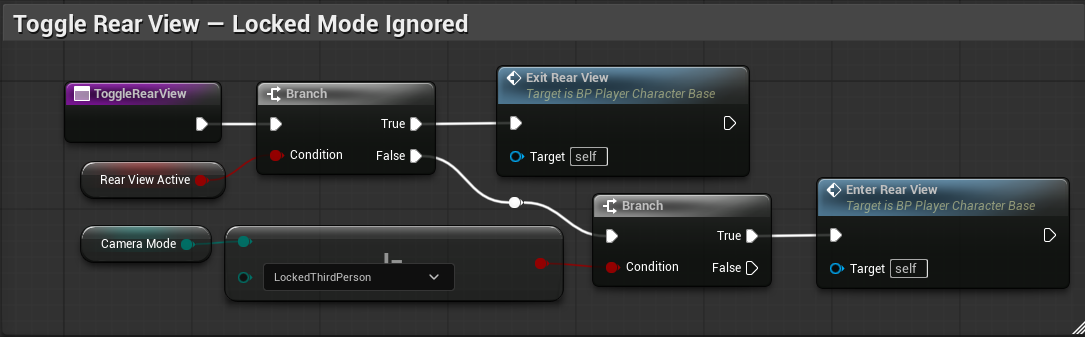
ToggleRearView exits an active rear view or enters it only from an eligible shared-camera mode.
Rear view is an overlay state. It remembers whether it came from first or free third person without changing CameraMode.
Forge 7 — Connect C and X
Create TogglePrimaryCameraMode:
TogglePrimaryCameraMode
→ ExitRearViewIfActive
→ Switch on CameraMode
    FirstPerson       → EnterFreeThirdPerson
    FreeThirdPerson   → EnterFirstPerson
    LockedThirdPerson → no connection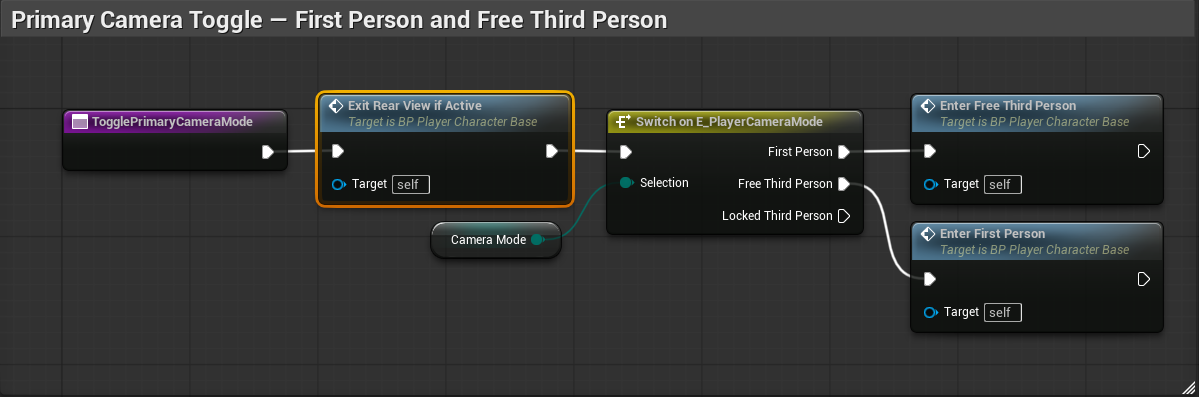
C safely closes an active rear-view overlay before switching between First Person and Free Third Person.
In BP_PlayerControllerBase, add two Enhanced Action Event routes. Use Started, not Triggered. Place one Get Controlled Pawn getter for each route and connect its Return Value to the Cast’s Object pin:
IA_TogglePrimaryCamera — Started
→ Cast to BP_PlayerCharacterBase
→ TogglePrimaryCameraMode

IA_ToggleRearView — Started
→ Cast to BP_PlayerCharacterBase
→ ToggleRearView
Compile and save both Blueprints.
Forge 8 — Build mouse-wheel zoom
Create a function:
HandleCameraZoom
Add one Float input:
AxisValue
Begin by calling ExitRearViewIfActive, then route positive and negative values separately. Zero does nothing.
For AxisValue > 0:
Switch on CameraMode

FreeThirdPerson:
    if DesiredArmLength > ThirdPersonMinimumDistance:
        DesiredArmLength =
            Clamp(
                DesiredArmLength - ZoomInStep,
                ThirdPersonMinimumDistance,
                ThirdPersonMaximumDistance
            )
    else:
        EnterFirstPerson

FirstPerson:
    no connection

LockedThirdPerson:
    no connection
For AxisValue < 0:
Switch on CameraMode

FirstPerson:
    EnterFreeThirdPerson

FreeThirdPerson:
    OutwardStep =
        MapRangeClamped(
            DesiredArmLength,
            180, 650,
            80, 25
        )

    DesiredArmLength =
        Clamp(
            DesiredArmLength + OutwardStep,
            180,
            650
        )

LockedThirdPerson:
    no connection
The changing outward step makes the camera move away quickly when it is close to Piper and more delicately near its maximum distance.
In BP_PlayerControllerBase, connect Get Controlled Pawn.Return Value to the Cast’s Object data pin, then build:
IA_CameraZoom — Triggered
→ Cast to BP_PlayerCharacterBase
→ HandleCameraZoom
    AxisValue: Action Value
IA_CameraZoom is Axis1D, so its Action Value is already a Float. Do not add a Break or conversion node.
If the physical wheel direction is reversed on the test machine, add a Negate modifier to the Mouse Wheel Axis mapping. Keep one graph contract instead of rewiring the behavior.
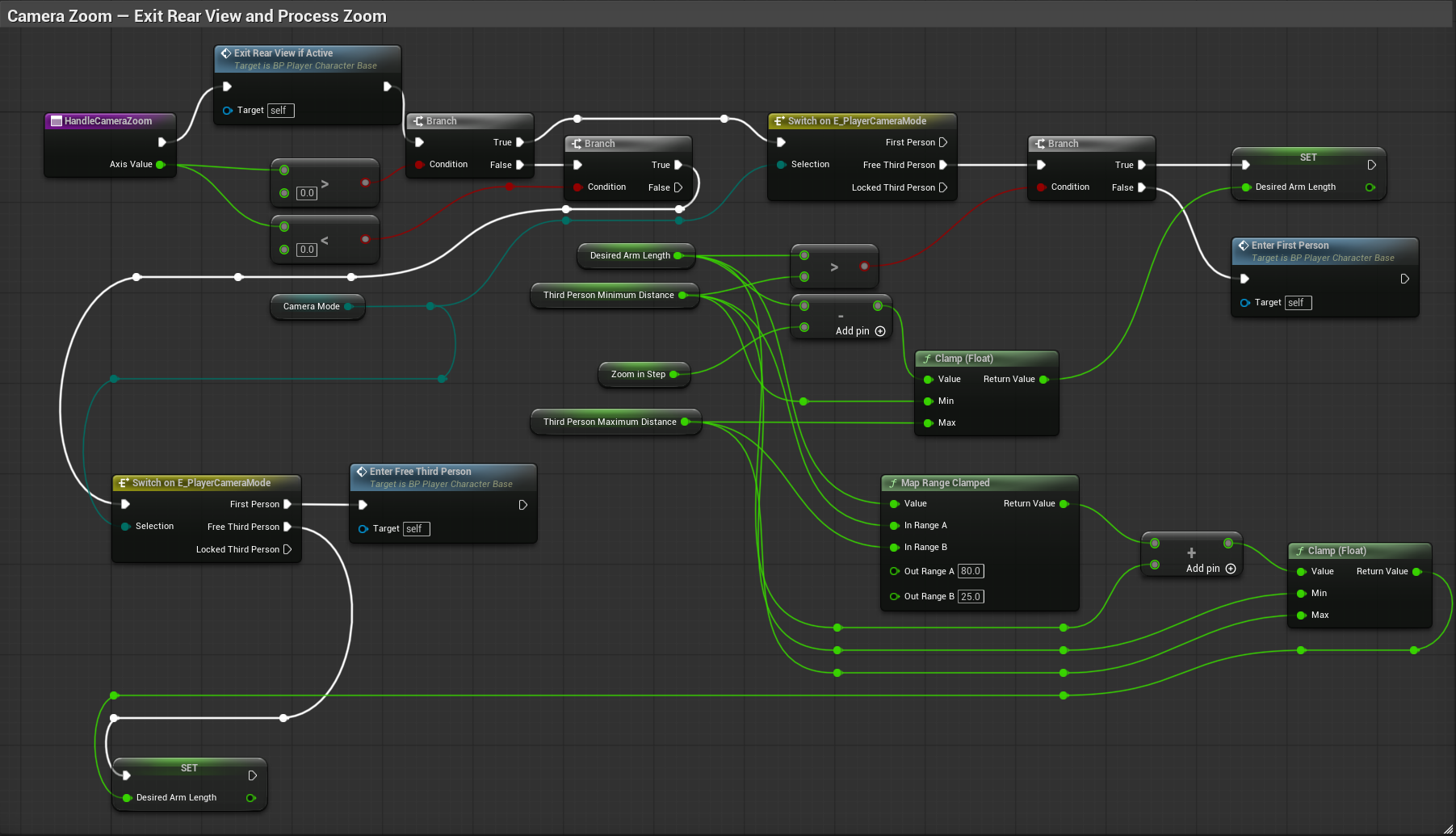
The complete zoom function leaves rear view first, then handles inward and outward requests by camera mode.
Forge 9 — Change body presentation at the real threshold
Return to the Event Tick route that interpolates CameraBoom.TargetArmLength.
After Set Target Arm Length, continue only when rear view is inactive:
Set Target Arm Length
→ Branch
    Condition: NOT RearViewActive
    True:
        Switch on CameraMode
Read the boom’s current Target Arm Length—the interpolated physical value, not DesiredArmLength.
For FirstPerson:
if CurrentArmLength <= FirstPersonVisualThreshold
and FirstPersonVisualsActive == false:
    SetFirstPersonPresentation(true)
    Orient Rotation to Movement = false
    Use Controller Rotation Yaw = true
    FirstPersonVisualsActive = true
Keep that order. Hide the world body before changing rotation policy so Piper does not visibly snap toward the camera immediately before the lens enters her head position.
For FreeThirdPerson:
if CurrentArmLength >= FirstPersonVisualThreshold
and FirstPersonVisualsActive == true:
    SetFirstPersonPresentation(false)
    FirstPersonVisualsActive = false
Leave LockedThirdPerson unconnected. Rear view is guarded because its entry and exit functions explicitly own presentation.
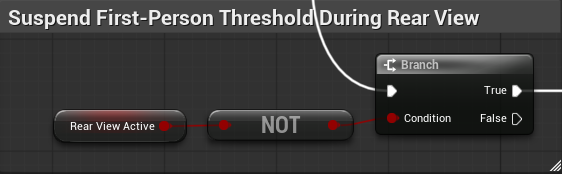
The presentation threshold is suspended while rear view owns the character’s visible state.
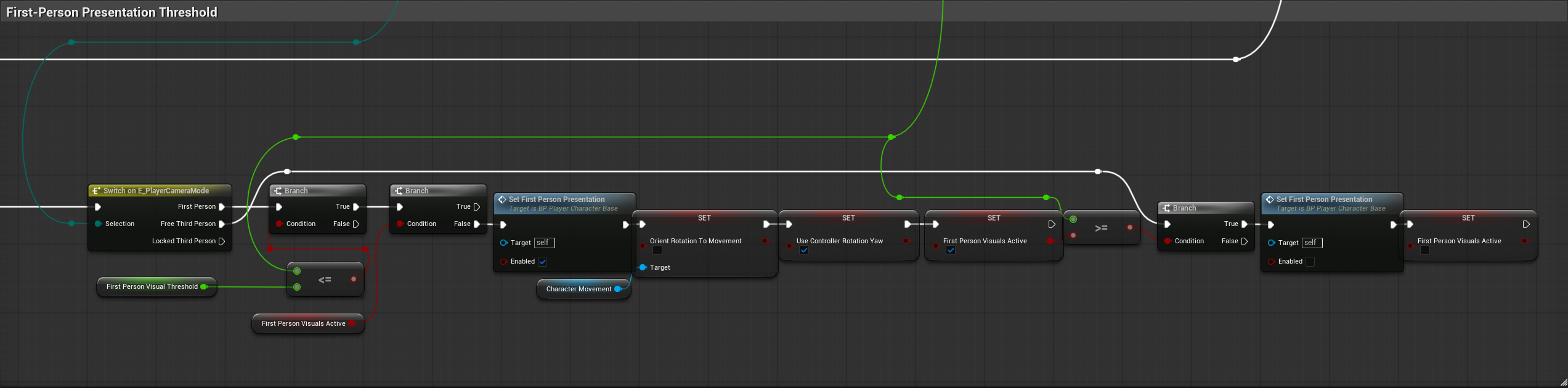
The interpolated Spring Arm length determines when the world body and first-person arms exchange visibility.
Trial — Cross the shared-camera boundary
Test in a fresh Play session:
- The camera begins in Free Third Person around 360 centimeters away.
- Scrolling inward reaches 180; the next inward notch enters First Person.
- Leaving First Person requests 240 centimeters.
- The world body disappears only after the camera reaches the threshold.
- The separate arms appear and animate while walking and jumping.
- Returning outward restores the world body and hides the arms.
- C alternates only First Person and Free Third Person.
- X enters and exits rear view from either mode and restores the exact source presentation.
- C or the mouse wheel safely leaves rear view before continuing.
The arms are a functional baseline. Their final composition can be refined later without changing the camera state contract.
Journey 3 — Prove Free-Camera Collision
Forge 10 — Keep the Spring Arm contract intact
Select CameraBoom and reconfirm:
| Setting | Value |
|---|---|
| Do Collision Test | Enabled |
| Probe Size | 12 |
| Probe Channel | Camera |
| Camera Lag | Disabled |
| Camera Rotation Lag | Disabled |
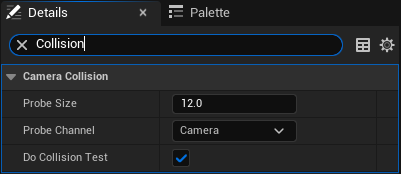
The Spring Arm tests against the Camera channel with the accepted probe size.
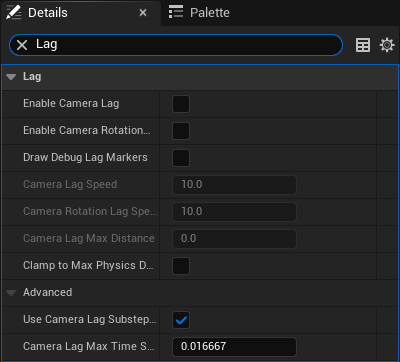
Camera and rotation lag remain disabled so collision behavior can be judged directly.
Confirm that the lab’s walls, floors, stairs, platforms, and overhead forms use collision that blocks the Camera channel.
The Spring Arm may shorten its actual reach around geometry. It must not overwrite DesiredArmLength; that value records where the player wanted the camera before the obstruction.
Trial — Run the collision route
In Free Third Person:
- Back Piper toward a wall.
- Orbit until geometry would sit between Piper and the camera.
- Walk beneath and beside the spiral stairs.
- Approach the irregular elevated platforms from above and below.
- Zoom while an obstruction is forcing the boom inward.
- Move away from the obstruction.
Confirm:
- The camera retracts instead of passing through geometry.
- It returns toward the requested distance after the obstruction clears.
- Collision-driven retraction does not trigger First Person.
- The outward desired distance survives while the physical boom is compressed.
- Movement, orbit, jump, and presentation remain correct.
Journey 4 — Add the World-Locked Camera
Forge 11 — Create BP_WorldLockedCamera
In Content/Graves/Characters/Player/Piper, create an Actor Blueprint:
BP_WorldLockedCamera
Add one Camera Component named LockedCamera, make it the root, and disable Auto Activate. Do not place a permanent instance in the Level. The PlayerController will spawn one reusable instance when needed.
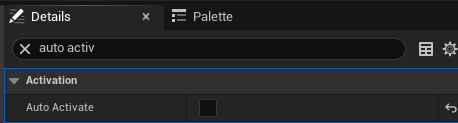
The world-locked Camera stays inactive until the PlayerController deliberately owns the view.
Forge 12 — Capture and own the locked view
In BP_PlayerControllerBase, create:
| Variable | Type | Default |
|---|---|---|
LockedCameraReference | BP_WorldLockedCamera Object Reference | None |
WorldLookInputLocked | Boolean | false |
WorldLookInputLocked records that the controller is using the fixed world view. Do not call Set Ignore Look Input. Mouse yaw still needs to steer Piper; pitch will be gated in the character’s look graph.
Create ActivateWorldLockedCamera with a BP_PlayerCharacterBase Object Reference input named PlayerCharacter:
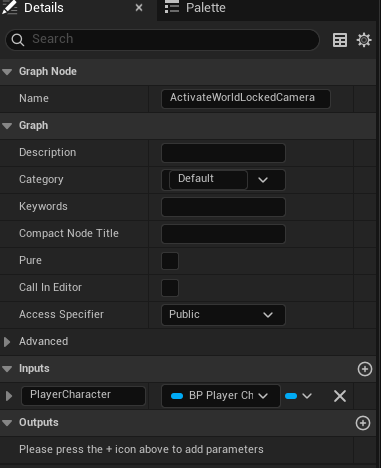
The controller function receives the reusable player-character type through the role-based PlayerCharacter input.
ActivateWorldLockedCamera(PlayerCharacter)
→ WorldLookInputLocked = true
→ Set View Target with Blend
    New View Target: LockedCameraReference
    Blend Time: 0.35
    Blend Func: Ease In Out
    Blend Exp: 2.0
    Lock Outgoing: true
→ PlayerCharacter.CameraMode = LockedThirdPerson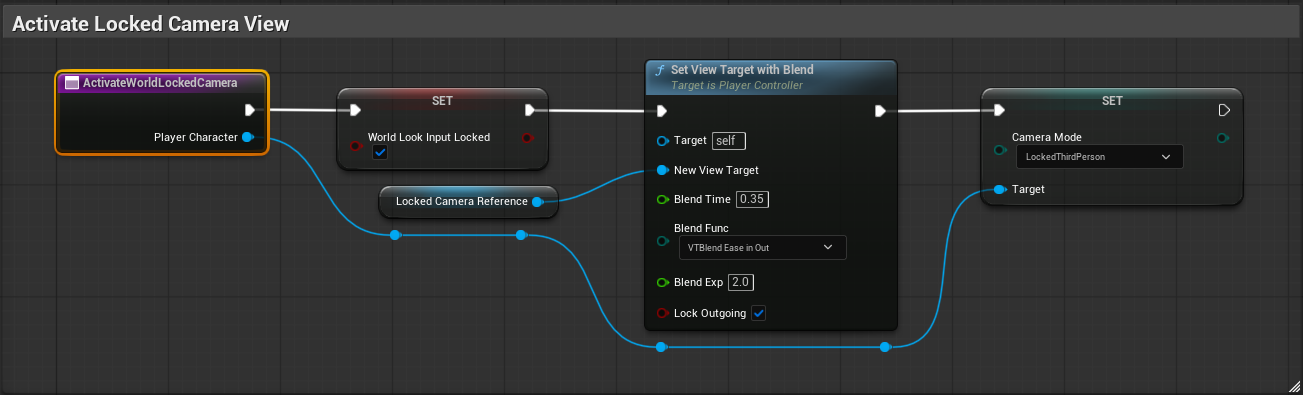
The activation route gives the locked Camera ownership of the view and records the durable camera mode on the supplied player character.
Create EnterWorldLockedCamera(PlayerCharacter):
- Get the Player Camera Manager.
- Read its current Camera Location and Camera Rotation.
- Test
LockedCameraReferencewith Is Valid. - On the valid path, move the existing locked-camera Actor to the captured transform, then call
ActivateWorldLockedCamera(PlayerCharacter). - On the invalid path, make a Transform from the captured location and rotation, spawn
BP_WorldLockedCamera, store the return value inLockedCameraReference, then call the same activation function.
Use the shared activation function on both paths. Do not try to merge two execution wires into one node input.
Create ExitWorldLockedCamera(PlayerCharacter):
Branch on WorldLookInputLocked

True:
    WorldLookInputLocked = false
    → Set View Target with Blend to PlayerCharacter

False:
    Set View Target with Blend to PlayerCharacter
Use a separate blend node on each Branch path with the same 0.35, Ease In Out, exponent 2.0, and Lock Outgoing settings.
Forge 13 — Make movement and look camera-safe
In BP_PlayerCharacterBase, define the shared condition:
CameraOwnedHeading =
    (CameraMode == LockedThirdPerson)
    OR RearViewActive
Preserve the imported IA_Move event, Action Value connections, and two Add Movement Input calls.
For left/right World Direction, use a Vector Select:
| Select state | Vector |
|---|---|
| False | Existing controller-yaw Right Vector |
| True | Get Actor Right Vector |
For forward/back World Direction:
| Select state | Vector |
|---|---|
| False | Existing controller-yaw Forward Vector |
| True | Get Actor Forward Vector |
Use CameraOwnedHeading as the Select index.
In the imported look route:
IA_Look — Triggered
→ Add Controller Yaw Input
→ Branch
    Condition: NOT CameraOwnedHeading
    True:
        Add Controller Pitch Input
    False:
        no connection
Yaw stays live so the fixed or rear-facing shot can show Piper turning. Pitch is suppressed so an inactive camera cannot accumulate hidden tilt.

Movement selects controller-relative axes for player-controlled cameras and actor-relative axes for rear and locked views.
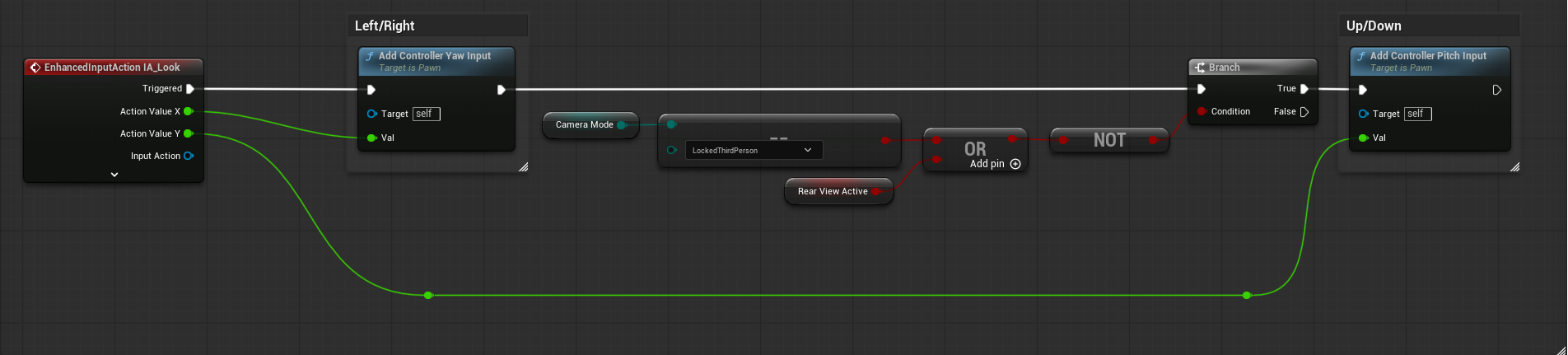
Yaw remains active in every view, while pitch is blocked when rear or world-locked cameras own the shot.
Forge 14 — Enter and leave the locked mode exactly
Create EnterLockedThirdPerson:
EnterLockedThirdPerson
→ SetFirstPersonPresentation(false)
→ FirstPersonVisualsActive = false
→ Cast Controller to BP_PlayerControllerBase
→ EnterWorldLockedCamera(self)
→ AlignControllerYawToActor
→ Use Controller Rotation Yaw = true
→ Orient Rotation to Movement = false
Create EnterFirstPersonFromLocked:
EnterFirstPersonFromLocked
→ Cast Controller to BP_PlayerControllerBase
→ ExitWorldLockedCamera(self)
→ Set Timer by Function Name
    Object: self
    Function Name: EnterFirstPerson
    Time: LockedToFirstPersonOverlapDelay
    Looping: false
    Max Once Per Frame: false
The 0.03-second timer overlaps the return to Piper with the 0.35-second blend. The existing threshold logic still owns the moment when body presentation changes.
Create ExitLockedToFreeThirdPerson:
ExitLockedToFreeThirdPerson
→ Cast Controller to BP_PlayerControllerBase
→ ExitWorldLockedCamera(self)
→ EnterFreeThirdPerson
Create ApplyLockedCameraToggle:
if CameraMode != LockedThirdPerson:
    LockedCameraSourceMode = CameraMode
    EnterLockedThirdPerson
else:
    Switch on LockedCameraSourceMode
        FirstPerson      → EnterFirstPersonFromLocked
        FreeThirdPerson  → ExitLockedToFreeThirdPerson
        LockedThirdPerson → no connection
Create ToggleLockedThirdPerson:
ToggleLockedThirdPerson
→ ExitRearViewIfActive
→ ApplyLockedCameraToggle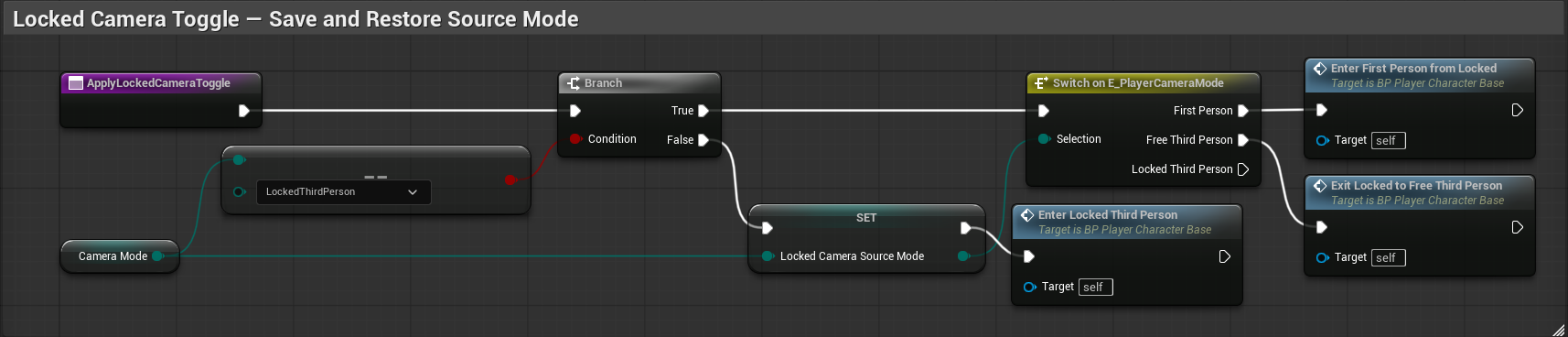
The locked-camera toggle saves the source mode on entry and chooses the matching return path on exit.
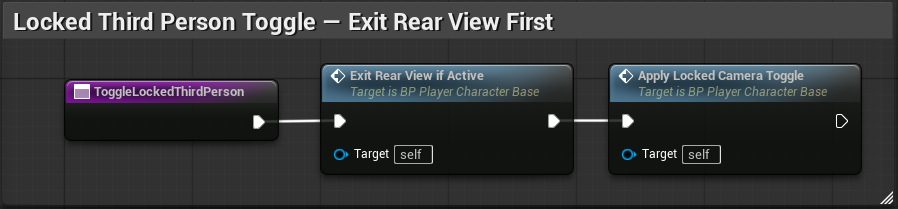
The public toggle leaves rear view before applying the locked-camera transition.
In BP_PlayerControllerBase, connect Get Controlled Pawn.Return Value to the Cast’s Object data pin, then build:
IA_ToggleWorldLockedCamera — Started
→ Cast to BP_PlayerCharacterBase
→ ToggleLockedThirdPerson
Compile and save both Blueprints.
Final Trial — Run the camera contract
Begin a fresh Play session in L_PlayerSystems and deliberately mix the controls:
| Control | Contract |
|---|---|
| C | Toggle First Person ↔ Free Third Person; leave rear view first; do nothing while locked |
| X | Toggle rear view from First or Free; return to the saved source presentation |
| V | Leave rear view if needed; enter world-locked view; return to the saved source mode |
| Mouse Wheel | Leave rear view if needed; perform the accepted inward/outward zoom; do nothing while locked |
Confirm:
- The lab starts in Free Third Person at the expected distance.
- Repeated C presses alternate only First and Free Third Person.
- X works from both eligible modes without floating first-person arms.
- C, V, and the mouse wheel safely cancel rear view before continuing.
- V captures the currently resolved view and leaves that Camera Actor stationary while Piper moves.
- A second V returns to the exact mode from which locked view began.
- Rear and locked movement use Piper’s actor axes.
- Mouse yaw steers Piper in rear and locked views; pitch does not accumulate there.
- Camera collision and desired zoom distance recover correctly after every transition.
- No transition creates a duplicate locked-camera Actor.
- No camera, body presentation, or rotation state remains stuck.
- Both Blueprints compile and save, and Play produces no Blueprint runtime errors.
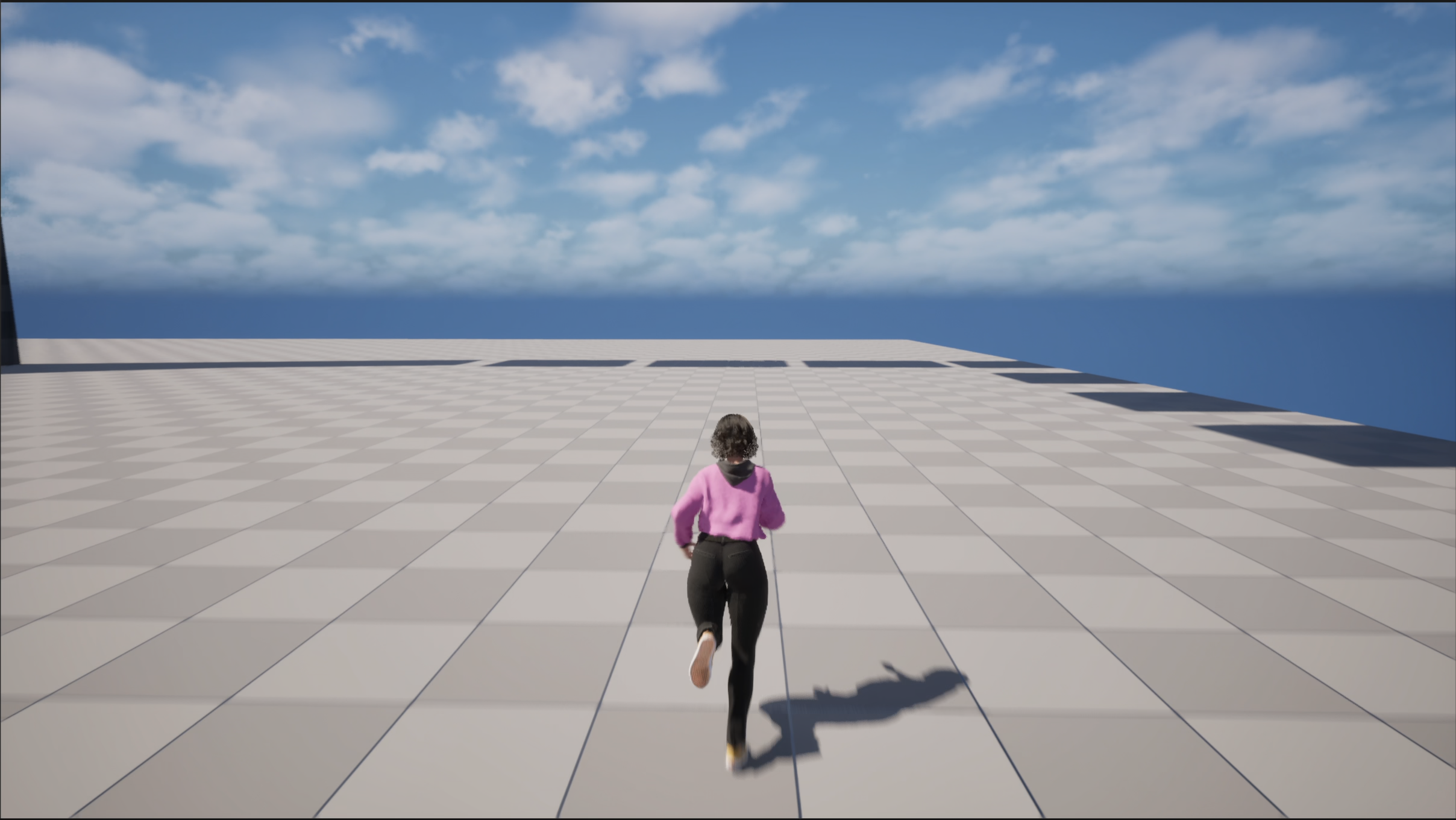
Free Third Person follows Piper from behind while preserving a readable view of the test course.
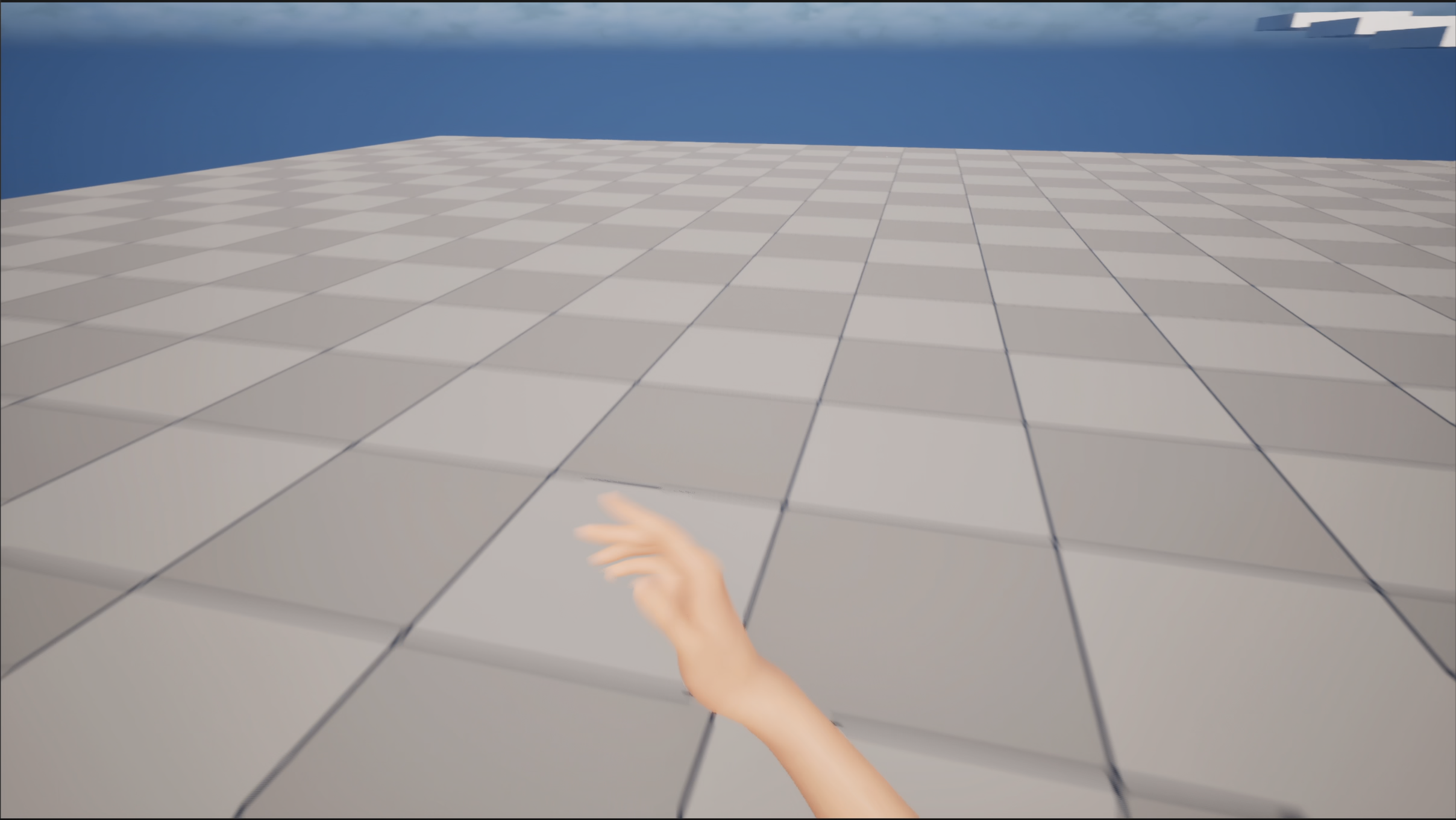
First Person hides the third-person body while the dedicated first-person arm remains visible during movement.
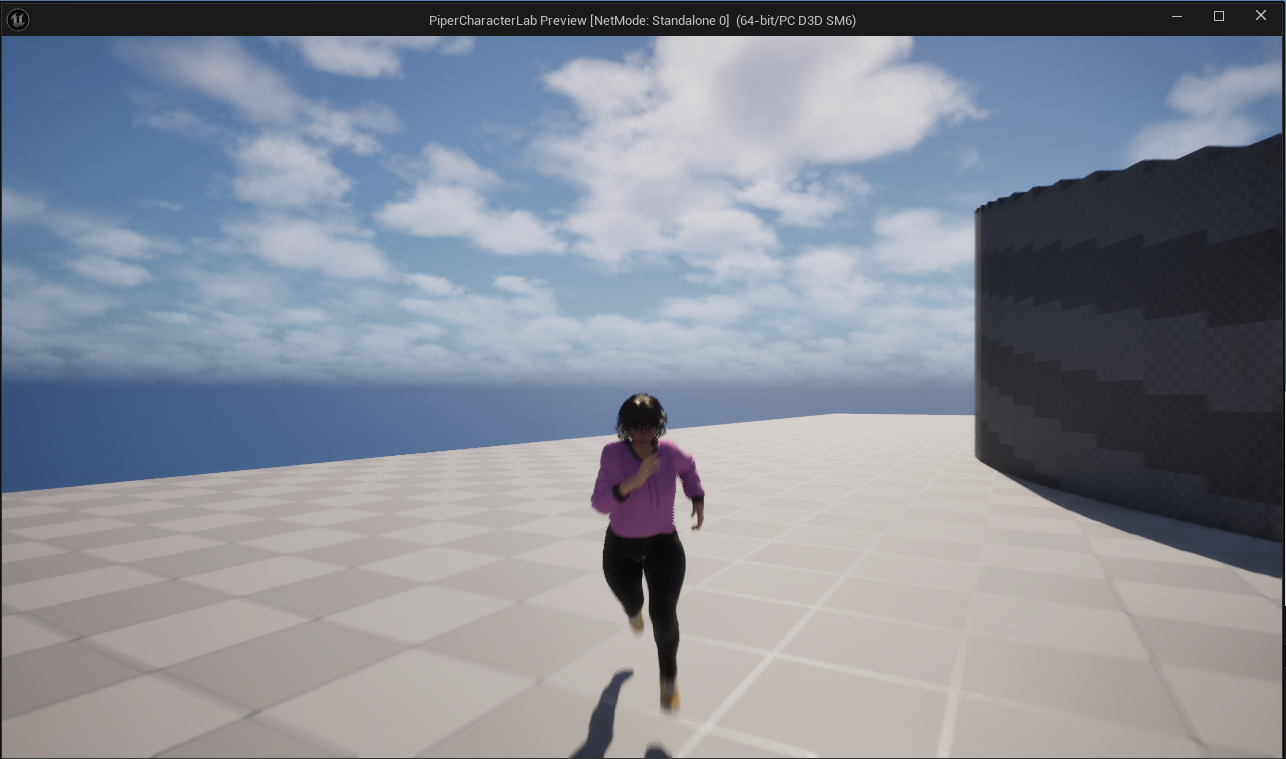
Rear view turns the shot toward Piper while movement and yaw continue to follow the rear-view contract.
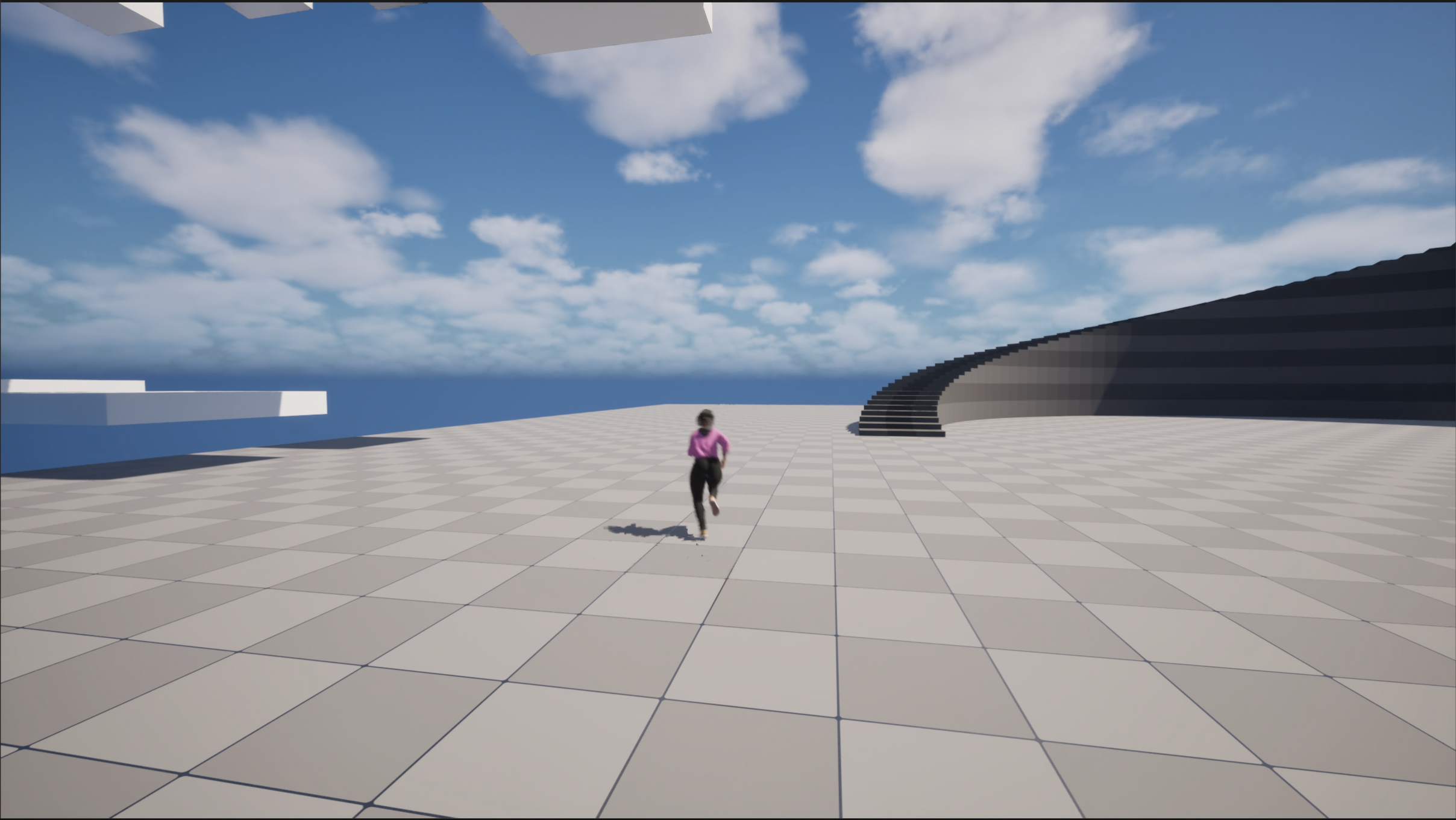
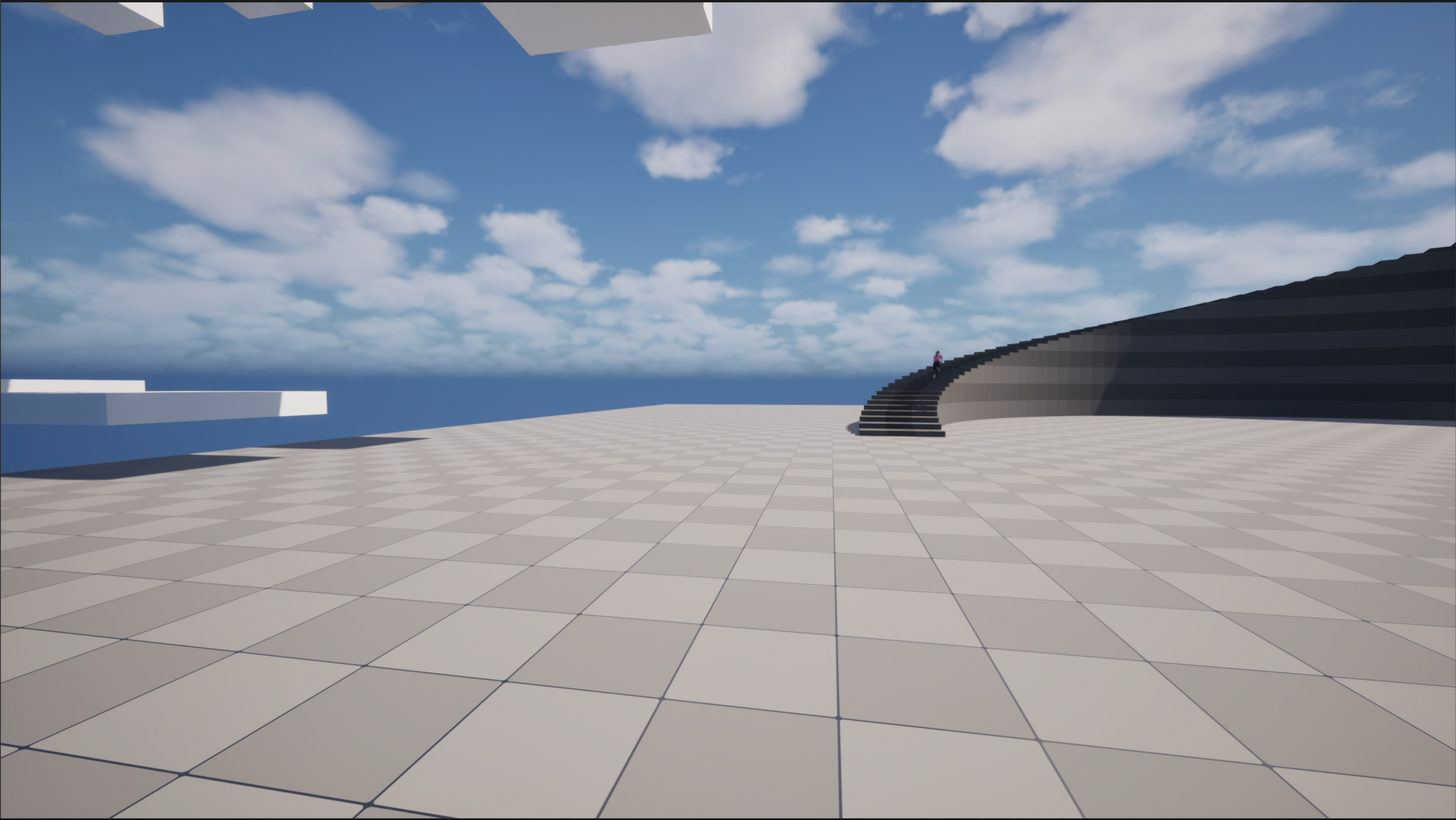
Piper moves from the nearby platform to the distant steps while the world-locked camera remains fixed.
The camera system is complete when every view has an exact entry, an exact exit, and a return path that remembers where Piper came from. That is what makes the system reusable: not the number of cameras, but the clarity of its state.